Generate on a key color in Ideogram
Turn Magic Prompt off before you type anything. It rewrites your text before rendering, the flat-background sentences are the first thing it cuts, and what comes back is a pretty picture on a moody vignetted backdrop that will not cut.
The prompt
The subject is an orange maple leaf. A leaf means plants, plants rule the green background out, and orange sits about as far from blue as a color can, so it renders on pure blue.
orange maple leaf, isolated on a completely flat, uniform, solid pure blue (#0000FF) digital chroma-key background. The pure blue background fills the image edge to edge like a flat digital chroma-key screen with no gradient, staying at full brightness inside every gap and opening in the subject; no reflection or tint of pure blue on the subject. Every edge of the subject is crisp, sharp and hard against the pure blue, with no soft, blurry, feathered or glowing transitions, no depth-of-field blur, no haze or halo; inside every hole and gap the pure blue stays at full brightness right up to the edge. Shaded parts of the subject keep their own natural color, never a pure blue tint. The entire subject is centered and completely inside the frame with at least 10% empty background margin on every side, nothing cropped or touching the image edges. No frame, no border, no paper, no mockup, no vignette, no text, no watermark, no deformed or duplicated parts. No floating or detached fragments, no stray specks, dust or debris anywhere on the background; every element is physically attached to the subject.
That goes in the prompt field on ideogram.ai. The negative prompt is not beside it: it sits under the advanced settings, and in the API it is the negative_prompt parameter. Ideogram actually honors it, which puts it in the minority here, so it is worth the extra click. Paste the ban list in unchanged:
gradient, vignette, shadow, reflection, bokeh, depth of field, blur, glow, halo, haze, texture, text, watermark, frame, border
If the cut says the key color is inside the subject
The listed fallback is red, but treat it as a last resort for this subject, because an orange leaf lives close to red and any cut made on it deserves a hard look at the badge. With blue as the first choice you will rarely need it. If you do:
orange maple leaf, isolated on a completely flat, uniform, solid pure red (#FF0000) digital chroma-key background. The pure red background fills the image edge to edge like a flat digital chroma-key screen with no gradient, staying at full brightness inside every gap and opening in the subject; no reflection or tint of pure red on the subject. Every edge of the subject is crisp, sharp and hard against the pure red, with no soft, blurry, feathered or glowing transitions, no depth-of-field blur, no haze or halo; inside every hole and gap the pure red stays at full brightness right up to the edge. Shaded parts of the subject keep their own natural color, never a pure red tint. The entire subject is centered and completely inside the frame with at least 10% empty background margin on every side, nothing cropped or touching the image edges. No frame, no border, no paper, no mockup, no vignette, no text, no watermark, no deformed or duplicated parts. No floating or detached fragments, no stray specks, dust or debris anywhere on the background; every element is physically attached to the subject.
Style and lettering
Pick the Design style rather than Realistic. Design keeps fills flatter, which is the whole game for clipart, and Realistic’s studio lighting is exactly what the prompt spends its sentences forbidding.
Ideogram also renders lettering readily. That is its claim to fame and here it is a liability, since a model eager to typeset will drop a word onto an otherwise good render, and text baked into a cut-out is a discard rather than a fix. The “no text, no watermark” line does real work on this tool, and text sits in the negative list as well. If words keep appearing anyway, check that Magic Prompt is still off, because the default brings the rewrite back and a rewrite that mentions style or mood is often what invites the typography in.
Which key to pick, and what each sentence in the prompt is for, is on the guide.
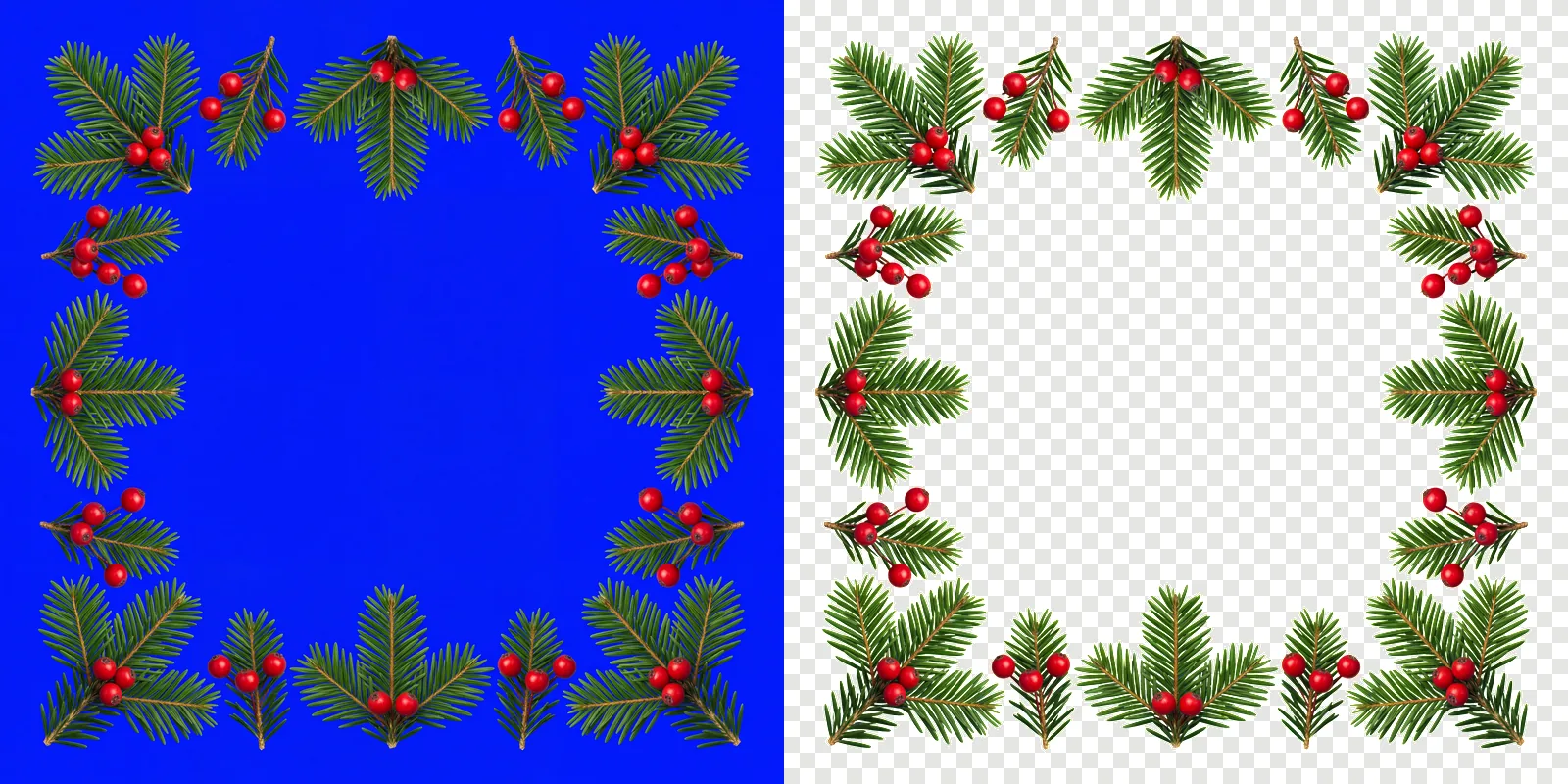
Use it on your own subject
The prompt above is one subject. For anything else, keep your own wording and paste this block on the end of it.
Isolated on a completely flat, uniform, solid pure blue (#0000FF) digital chroma-key background. The pure blue background fills the image edge to edge like a flat digital chroma-key screen with no gradient, staying at full brightness inside every gap and opening in the subject; no reflection or tint of pure blue on the subject. Every edge of the subject is crisp, sharp and hard against the pure blue, with no soft, blurry, feathered or glowing transitions, no depth-of-field blur, no haze or halo; inside every hole and gap the pure blue stays at full brightness right up to the edge. Shaded parts of the subject keep their own natural color, never a pure blue tint. Everything in sharp focus with deep depth of field, evenly lit with soft neutral studio light, no cast shadow, no contact shadow, no ambient occlusion, no bounce light. The entire subject is centered and completely inside the frame with at least 10% empty background margin on every side, nothing cropped or touching the image edges. No frame, no border, no paper, no mockup, no vignette, no text, no watermark, no deformed or duplicated parts. No floating or detached fragments, no stray specks, dust or debris anywhere on the background; every element is physically attached to the subject.
Then cut them out
Download the renders at full resolution and drop them into ClipBrook. Your images stay on your computer. Nothing is uploaded. Each file comes back as a PNG with a transparent background, and the serrated edge of a maple leaf makes a good first test: every little point stays sharp when the background was truly flat, and the badge names the render to re-roll when it was not.